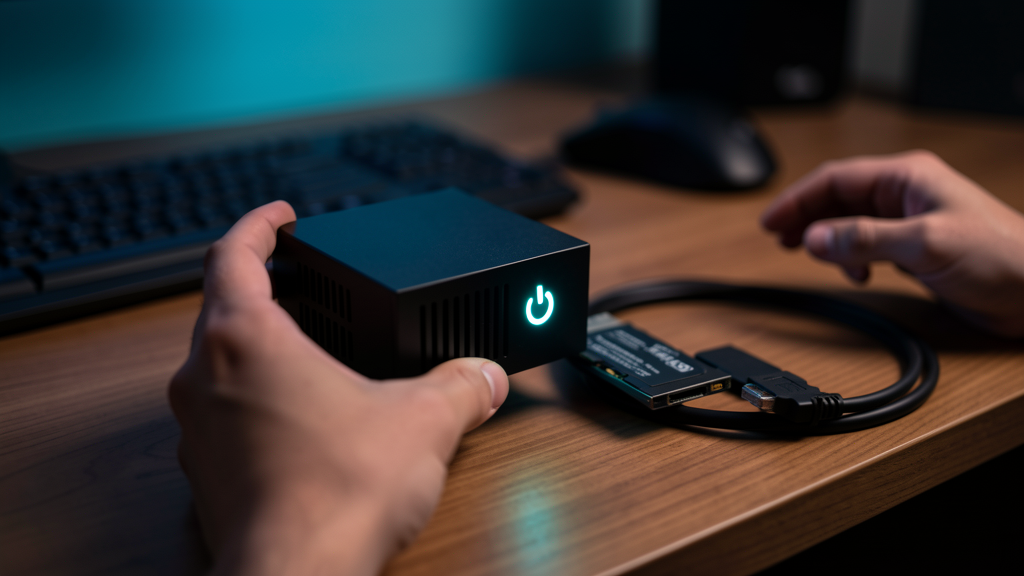
Check the basics
For comfortable everyday use, aim for a 64-bit processor, 4 GB of memory, and at least 30 GB of free storage. An SSD upgrade usually makes a bigger difference than adding more memory.
Pick the right distribution
Linux Mint XFCE is the easiest recommendation for Windows users. Xubuntu is a clean, well-supported alternative. Debian with XFCE is excellent for very old machines, but expects a little more setup.
| Distribution | RAM sweet spot | Vibe |
|---|---|---|
| Linux Mint XFCE | 2–4 GB | Familiar, polished, Windows-like |
| Xubuntu | 2–4 GB | Cleaner, Ubuntu-powered |
| Debian + XFCE | 1–2 GB | Minimal, fastest on old hardware |
| Lubuntu | 1–2 GB | Lightweight Ubuntu flavour |
| Puppy Linux | 512 MB – 1 GB | Last resort for ancient machines |
Try before installing
Download the distribution image, write it to a USB drive, and choose “Try” at startup. Test Wi-Fi, sound, display brightness, the webcam, suspend, and the trackpad before touching the internal drive.
Back up first
Copy documents, photos, browser bookmarks, password-manager data, and any licence keys to a separate drive. A clean installation erases the destination disk.
Keep the first setup simple
Install system updates, enable automatic security updates, add the applications you really use, and stop. Do not turn the first afternoon into a customisation marathon.
A useful old laptop is better than a perfectly customised laptop that never leaves the workbench. The Linux Institute team
Things that usually get better with Linux on old hardware
- Boot time. From two minutes under Windows to fifteen seconds under Linux Mint.
- Battery life. Linux is more conservative with background services.
- The spinning beachball. Lightweight desktops stop needing to swap.
- Heat and fan noise. Fewer background apps, less heat.
Things that sometimes get worse
- Specialised software. If your workflow relies on one proprietary Windows application, check the Linux compatibility first. Office, browsers, and most creative tools are fine; some niche business apps are not.
- Printers and scanners. Most work, but a few brands still have only Windows drivers. Check
openprinting.org. - Trackpad gestures. Linux is catching up but Windows is still smoother on hardware older than five years.