
600+ active distributions · we cover the five you'll actually use

Pick a Linux.
Actually use it.

A “distribution” is just Linux packaged with a desktop look, a set of pre-installed apps, and a philosophy about who it’s for. There are hundreds. You only need to choose between three — and you can try all of them without installing a thing.

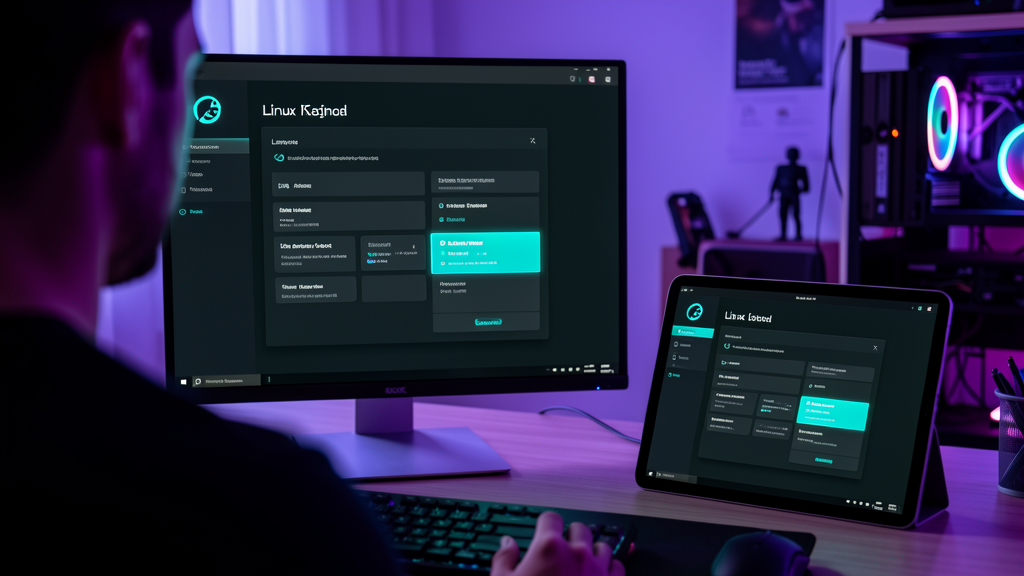
Over-the-shoulder photograph of a 4K monitor mid-install with a Linux installer in dark theme, glowing cyan against a dark home office.
An installer that doesn’t fight you. Modern Linux installers walk you through language, keyboard, partition, and account setup in roughly twenty minutes.
The three you’ll actually use

Ubuntu, Fedora, Linux Mint.

These three cover roughly 80% of all Linux users. Start with whichever description sounds most like you, and you can change your mind later without losing data.

RECOMMENDED FOR FIRST-TIMERS

Ubuntu

The default. Ubuntu is what most people mean when they say “Linux” today. Largest community, the most tutorials, the smoothest path if you’ve never used Linux before. If in doubt, start here.

Best for: Beginners, laptops, “just works” setups.

Release cycle: Every six months (April + October), LTS versions every two years with five years of security updates.


FOR PEOPLE WHO LIKE THE CUTTING EDGE

Fedora

Backed by Red Hat. The most popular distribution among working software engineers. Fedora ships new technology sooner — newer kernels, newer desktop features. If Ubuntu feels too “safe”, Fedora is the next stop.

Best for: Developers, tinkerers, slightly newer hardware.

Release cycle: Every six months; roughly thirteen months of support per release.

THE FAMILIAR ONE

Linux Mint

If you’ve been on Windows for twenty years, Linux Mint is the gentlest landing pad. It deliberately looks and behaves like Windows — taskbar at the bottom, system tray on the right, classic menus.

Best for: Windows switchers, older computers, “leave me alone” setups.

Release cycle: Point releases every six months on top of Ubuntu LTS — you keep getting the LTS until you choose to upgrade.

Two worth knowing

Once you’re comfortable.

These two distributions aren’t for day one. They earn their place on the list because you’ll hear them mentioned in conversation within your first month.

THE STABLE ORIGINAL

Debian

The grandparent of both Ubuntu and Mint. Debian is the rock: slow-moving, extraordinarily stable, and the basis for most of what runs the internet’s servers. Pick Debian when you want something rock-solid that you can ignore for a year.

Best for: Servers, parents’ computers, people who want something that doesn’t change.

THE PRODUCTIVITY ONE

Pop!_OS

System76’s Ubuntu-derived distribution for laptop users and creative professionals. The Pop desktop adds window tiling, keyboard-driven navigation, and a built-in workflow for managing multiple monitors. Useful and well-loved.

Best for: Multi-monitor setups, keyboard-driven workflows, people upgrading from Ubuntu.

THE TEACHING ONE

Arch Linux

The thing you install when you want to learn what Linux is actually made of. Installation is text-only and you build the system yourself. By the end you’ll know more than half of your colleagues. Not recommended as a daily driver until you’ve used Linux for six months.

Best for: Curious learners, people who want to understand their OS, tinkerers with time to spare.

What readers actually use

The Top 15 right now.

DistroWatch tracks how often each distribution page is visited, then rolls the last six months into a single ranking. It’s not a quality score — it’s an attention score. Useful as a sanity check: these are the distros people are actively looking at, installing, and arguing about.

data: DistroWatch Page Hit Ranking  ·  last 6 months  ·  updated daily  ·  read more on the rankings methodology  ·  refreshed 16 July 2026

  1. 01 CachyOS

    CachyOS

    ARCH-DERIVED

    Arch with sane defaults and aggressive performance tuning. Currently the biggest jump in the rankings; the 2026 audience is voting with their feet.

  2. 02 Mint

    Mint

    UBUNTU-DERIVED

    Still the distros-of-the-people. Cinnamon desktop, sensible defaults, doesn’t change underneath you. The closest Linux has to “just works”.

  3. 03 MX Linux

    MX Linux

    DEBIAN-DERIVED

    Mid-weight Debian, lightweight Xfce or KDE, a famously friendly forum. Quietly the third-most-looked-at distro on the planet.

  4. 04 Pop!_OS

    Pop!_OS

    UBUNTU-DERIVED

    System76’s Ubuntu remix, built around tiling and keyboard-driven work. Held its audience when the parent company paused to reorganise.

  5. 05 Debian

    Debian

    UPSTREAM

    The grandparent. Slower to ship, faster to last a decade. If you don’t change your OS often, this is what you actually want.

  6. 06 Zorin

    Zorin

    UBUNTU-DERIVED

    “Looks like Windows or macOS on day one.” The most successful Linux onboarding shell for people switching off other operating systems.

  7. 07 Fedora

    Fedora

    RPM

    Red Hat’s community playground. Always slightly ahead of where RHEL is in 18 months. The default for anyone who likes the new before everyone else.

  8. 08 EndeavourOS

    EndeavourOS

    ARCH-DERIVED

    Arch without the ritual. Installer, sensible defaults, then you have an Arch system you can actually use. The friendly on-ramp to that universe.

  9. 09 Ubuntu

    Ubuntu

    DEBIAN-DERIVED

    The default. Slipped out of #1, but still the distro most people mean when they say “Linux”. The new LTS landed this spring; the doc still applies.

  10. 10 Manjaro

    Manjaro

    ARCH-DERIVED

    The other friendly Arch. Has had a rough couple of years internally, but the user base hasn’t migrated yet — the package manager and the installer are still very good.

  11. 11 Bazzite

    Bazzite

    FEDORA-DERIVED

    Fedora Atomic built for handhelds and gaming. The Steam Deck’s unofficial cousin. Why “gaming Linux” now ships with an immutable base.

  12. 12 Arch Linux

    Arch Linux

    UPSTREAM

    Half a million people still roll their own. The teaching distro. Read the wiki; you’ll understand Linux better than any course can teach.

  13. 13 AnduinOS

    AnduinOS

    DEBIAN-DERIVED

    New entry: a Debian remix aimed at developers who want Microsoft’s tooling defaults without Microsoft’s OS. Worth a look if your team lives in WSL.

  14. 14 PikaOS

    PikaOS

    DEBIAN-DERIVED

    A fast-moving gaming-focused Debian fork. About as close to “plug-and-play Linux for gaming” as 2026 gets without going the Bazzite route.

  15. 15 openSUSE

    openSUSE

    RPM

    The European answer to Fedora. YaST still writes its own chapter in the sysadmin book. Tumbleweed rolls daily; Leap tracks SUSE Linux Enterprise.

See the full Top 100 and the wider rankings on distrowatch.com.

Side by side

The five, at a glance.

The five recommendations, compared on the things beginners actually care about.

Distribution Desktop Look & feel Best for Hardware age Update cadence
Ubuntu GNOME Modern, dock on left, Mac-like First-time switchers, general use Last ~8 years 6 months / 2 yr LTS
Fedora GNOME (default) Modern, refined, slightly nerdy Developers, newer hardware Last ~6 years 6 months
Linux Mint Cinnamon Traditional, taskbar at bottom Long-time Windows users, older PCs Last ~12 years Ubuntu LTS base
Debian GNOME (or pick) Understated, professional Servers, stability-first users Last ~10 years ~2 years
Pop!_OS Cosmic (GNOME) Bright, productive, tiled Multi-monitor, keyboard workflows Last ~8 years Ubuntu base
“The best distribution is the one you don’t think about. Pick one of these, customise nothing for the first week, and see if you forget it’s there. If you do, you picked well.” The Linux Institute team
How to try one tonight

You won’t break anything. Promise.

The single best thing about Linux is you can try it without installing it. Boot from a USB stick, fiddle, shut down, and your computer returns to exactly how you left it.

1. Download

Pick Ubuntu (or Mint, or Fedora) from the dropdown on their download page. The file is roughly 5 GB. Save it to your normal Downloads folder.

Source: ubuntu.com/download, getfedora.org, linuxmint.com/download.

2. Flash a USB stick

Use a free tool called balenaEtcher. Plug in any USB stick (8 GB or bigger), pick the file, click Flash. That’s it.

Tip: The USB stick will be wiped. Use an empty one, or back it up first.

3. Restart

Restart your computer with the USB stick still plugged in. Most computers boot from USB automatically. If not, press F12 during startup and pick the USB from the list.

Boot menu key varies by manufacturer — check yours if F12 doesn’t work.

4. Explore

You’ll see a Linux desktop. Open the apps, browse the internet, write a document. When you’re done, shut down, remove the USB, and your computer is exactly as it was.

Pro tip: “Try Linux” mode leaves no trace on your hard drive. Nothing to clean up.

Inside the boot menu

What the installation actually does.

A modern Linux installer walks you through five screens. Most people finish in twenty minutes. This is the whole thing.

Walking-through Ubuntu 24.04 LTS # 1. Welcome & language — pick English (or your language of choice). Continue # 2. Accessibility — keyboard, screen reader, large text. Skip on first try. Continue # 3. Keyboard layout — pick yours; the installer shows you the test field. Continue # 4. Network — connect to Wi-Fi if you're using wireless. Continue # 5. Installation type — “Erase disk and install” is fine on a fresh machine. ! Tick “Download updates while installing Ubuntu” and “Install third-party graphics and Wi-Fi drivers”. Install Now # 6. Where are you? — set timezone from the map. Continue # 7. Who are you? — your name, computer name, username, password. Continue # Wait. Coffee. Restart when prompted. ✓ Installation complete.

What you get when you reboot.

A complete desktop with a browser, an office suite, a media player, an email client, a PDF reader, an image editor, and a software store. The whole operating system including all its apps takes around 8 GB of disk.

What you don’t need to do.

You don’t need antivirus. You don’t need a separate driver-install step. You don’t need to “activate” anything. The operating system and the apps are free, fully featured, and yours to use however you like.

Still unsure?

Try them all in one evening.

Ubuntu tonight, Fedora tomorrow, Linux Mint this weekend. Same USB stick works for all three. By Sunday you’ll know which one feels like home. Subscribe to Terminally Online for daily Linux tips.

Read the beginner guides → Or subscribe to the newsletter